A map of Claude Cowork features: what it can do, and where you can use it
Cowork's features (folder work, built-in browser, scheduled runs, plugins, projects) and official use cases, plus the September 2026 merge with Chat, pricing and safety.
TL;DR
- Cowork is a feature where you hand over folders and connectors and delegate the work itself. In Chat, Claude only replies, while Cowork also reads and writes
- The features are easier to sort into three groups: how work proceeds (scheduled runs, parallel processing, browser, screen control), customization (plugins, skills, connectors, subagents) and administration (permissions, approvals, auditing)
- Merging with Chat began on September 16, 2026. The "Cowork" option is disappearing plan by plan, starting with Pro and Max, and Claude is moving to deciding whether something is a question or a task
- From October 6, new Cowork tasks on Pro and Max run in the cloud, and the "Only on your computer" setting goes away
Contents
- First, where it stands: the merge with Chat is under way
- How it differs from Chat and Claude Code
- The list of features
- Features related to how work proceeds
- Features related to customization
- Features for use in an organization
- What the features mean, and how to use them
- Try “connector → browser → screen control” in that order
- Choosing between the built-in browser and Claude in Chrome
- Plugins are close to “role defaults”
- Where to use it: four examples the official materials give
- Pricing and availability
- Safety points to know before using it
- The October 6 change
- How to read this: where to start
It may be a little late to be doing this, but I realized I had been using Claude only vaguely, so I took it as a chance to sort out Cowork.
I pull together a dozen or so official pieces, across the product page, blogs and the Help Center, to check which features Cowork includes and where you can use them.
First, where it stands: the merge with Chat is under way
First, what changed in September 2026. In its September 16 blog, Anthropic announced it is merging Claude Cowork and Chat into one Claude. It rolls out to the Pro and Max plans over several weeks, followed by Team and Free. For Enterprise, it says it will contact admins at least 30 days before the change.
After the merge, the “Chat” and “Cowork” choices disappear from the message box. Whether it’s a question or a report due by noon, Claude looks at the content and decides whether to answer right away or to proceed as a task. The Help Center says that if the choice no longer appears, you have been switched to the new experience.
According to the blog, the reason for the merge was that work started in Cowork and work started in Design weren’t carried over, and having to choose where to start was itself a source of frustration. The conversations, projects, artifacts, connectors and skills you used in Cowork are said to remain as they are after the merge.
How it differs from Chat and Claude Code
The FAQ on the product page explains the differences as follows.
- Chat: Claude replies to messages but can’t access files directly
- Cowork: can read, edit and create files in folders you specify. It doesn’t just explain how to do the work, it completes it
- Claude Code: for software development (writing code, debugging, releasing). Cowork is for knowledge work such as research, analysis and document writing rather than code, and uses the same agent approach
In other words, Cowork extends Claude Code’s “hand over a goal and delegate” approach to work other than development.
The list of features
From the official pages, I put the features in a list. The “conditions and notes” for each item are the scope of availability described in each Help article.
Features related to how work proceeds
- Working in folders and with tools: reads and writes files to produce deliverables, within the scope of the folders and connectors you choose
- Conditions and notes: it touches only the folders and tools you chose. Deletion requires approval
- Progress display: you can see, one step at a time, which files it opened, which tools it used and what it decided, and change direction partway through
- Scheduled runs: runs the same task automatically daily, weekly, monthly and so on
- Conditions and notes: available on all paid plans. Scheduled tasks that run in the cloud run even while your device is asleep, but can’t be tied to folders on your PC. Tasks that need files or apps on your PC run only locally
- Parallel processing: splits a big job and works on drafting, research and organizing at the same time
- Built-in browser: opens sites, reads pages and fills in forms. It appears in a side panel and is separate from your own browser
- Conditions and notes: desktop app. Rolling out on Pro, Max and Team. For Enterprise, an admin enables it
- Computer use (screen control): when neither a connector nor the browser is available, it operates the screen directly to run an app
- Conditions and notes: beta. Desktop app (macOS, Windows) on Pro and Max
- Cloud execution: work continues even when you close your PC. You can give instructions from your phone and see results
- Conditions and notes: web and mobile are in beta. Available automatically on Pro, Max and Team. For Enterprise, an admin chooses
Features related to customization
- Plugins: bundle skills, connectors, slash commands and subagents into one, to make a specialist for a role or team
- Conditions and notes: launched as a research preview to all paid users on January 30, 2026
- Skills: give Claude knowledge and procedures for a field
- Conditions and notes: a component of plugins
- Connectors: connect to the tools you use every day (Slack, Google Drive, Microsoft 365, Amplitude and so on)
- Conditions and notes: faster and more reliable than screen control, so Claude uses these first
- Subagents: dedicated agents that take on a specific job from start to finish
- Conditions and notes: a component of plugins
- Projects: group related work into a workspace that holds instructions, files, scheduled tasks and memory
- Conditions and notes: memory is limited to the project and isn’t carried over to other projects. Team and Enterprise can also share them
Features for use in an organization
- Role-based access control: decide per group which Claude features can be used
- Conditions and notes: Enterprise. Groups can be synced with SCIM
- Per-group usage limits: set budgets per team
- Conditions and notes: set in the admin console
- Tool-level control of connectors: settings such as allowing read-only and disabling write
- Conditions and notes: applied organization-wide
- Usage analytics: see session counts, active users, and skill and connector calls
- Conditions and notes: admin dashboard and analytics API
- OpenTelemetry: emits tool calls, file reads and writes, and whether approval was manual or automatic as events
- Conditions and notes: Team and Enterprise. Can be sent to a SIEM
- Private plugin marketplace: distribute plugins inside the organization
- Conditions and notes: announced in the February 24, 2026 blog
There are also features that were offered in the past. “Live artifacts” created in Cowork before August 19, 2026 can still be opened and shared as is, but can’t be edited in place. To edit one, republish it as a new artifact from the share menu. From August 19 onward, they are handled the same as regular artifacts. “Dispatch”, which lets you give instructions to your PC from your phone, isn’t offered to new users.
What the features mean, and how to use them
A list alone makes it hard to decide which to choose, so I add three design points the official materials explain.
Try “connector → browser → screen control” in that order
According to the help page on computer use, Cowork chooses its means in this order.
- Connectors: Gmail, Google Drive, Microsoft 365, Slack and so on. Fastest and most reliable
- Browser: when there is no connector. Uses the app’s built-in browser or Claude in Chrome
- Screen control: operates desktop apps directly with clicks and typing
In the Slack example, it explains that messages a connector can fetch in seconds take longer and are more error-prone when read from the screen. The shortcut is to first check whether a dedicated connector exists for the tool you want to use.
Choosing between the built-in browser and Claude in Chrome
The announcement of the built-in browser sorts out the two as follows.
- Built-in browser: a browser dedicated to Claude. It can’t see your own tabs, bookmarks or passwords. For when you want to hand off only the web part, such as gathering information for a report or collecting invoices from vendor portals, and carry on with other work yourself
- Claude in Chrome: uses the page you currently have open and your signed-in accounts in your own Chrome. For work on the page in front of you, such as updating a CRM, organizing an inbox or editing a document you have on hand
If you already use Claude in Chrome, it stays as the default. You switch with “Preferred browser” under “Cowork” in the desktop app’s settings.
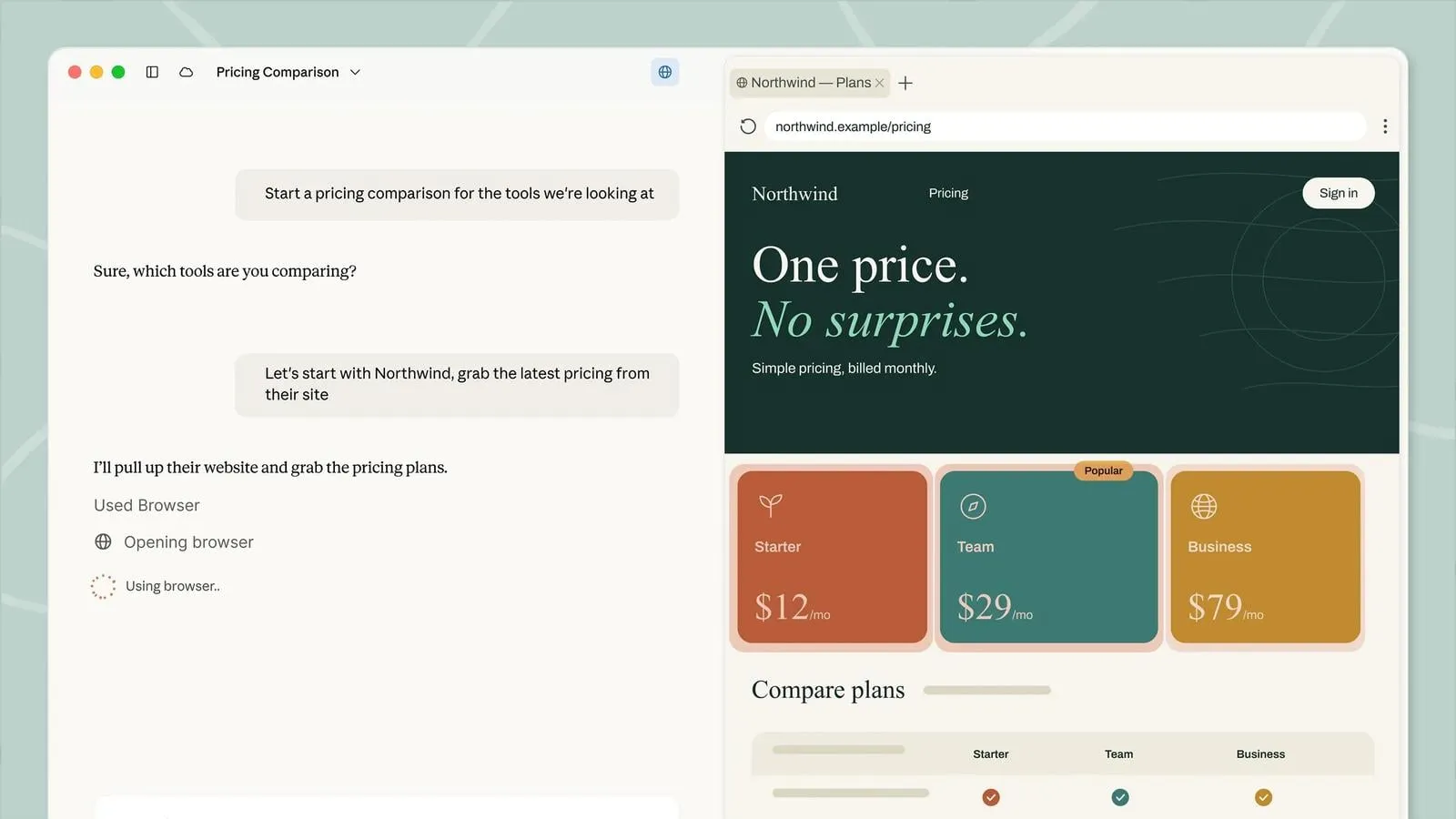
In the screen on the official site, a browser panel is open to the right of the conversation, and Claude is partway through collecting pricing plans from a pricing page. The conversation side shows “Used Browser” and the status of the work. For sites that need a login, the first time you can import saved logins from your browser, site by site. You can import only from Chrome, Edge and Firefox on macOS, and from Firefox on Windows and Linux (beta), and Safari isn’t supported. Banking, email and single sign-on sites aren’t selected by default.
Plugins are close to “role defaults”
In the plugin announcement blog, eleven plugins that Anthropic’s own teams built and use were released as open source.
- Productivity: day-to-day work such as tasks and calendars
- Enterprise search: search across internal tools and documents
- Plugin creation and customization
- Sales: prospect research, deal preparation
- Finance: financial analysis, model building, managing metrics
- Data: querying, visualizing and interpreting datasets
- Legal: document review, flagging risks, managing compliance
- Marketing: drafting content, campaign planning
- Customer support: triaging inquiries, drafting replies
- Product management: specs, roadmaps
- Biology research: literature search, analyzing results, planning experiments
It explains that all the components are written as files, which makes them easy to create, modify and share. The official site also lists third-party ones (for example, Tribe AI’s brand voice).
Where to use it: four examples the official materials give
The product page has four examples of handing over folders and connectors and delegating.
- Recurring reports: every Monday morning, collect web views and sign-ups from Amplitude, and newsletter, social and webinar numbers from Drive, and build a slide comparing them with the previous week. Metrics that moved more than 10% are flagged, and numbers it couldn’t get are noted
- Spreadsheet reconciliation: hand over a folder of regional exports and budget files, and get back a table with discrepancies flagged and a note on the items that were checked and didn’t match
- First-pass contract review: hand over a folder of incoming contracts and your company’s standards document, and get back, for each contract, a memo showing the points that depart from the standards with clause references, plus a list of issues that the standards document doesn’t cover
- Collecting objections: hand over a quarter’s worth of call notes, and get back the status of each deal, the obstacles customers raised and the objections that recur, with quotes from the original notes
What they share is handing off the groundwork before a human makes the final judgment. The product page also has videos of Anthropic itself using it in marketing, sales and legal, and a Claude Academy tutorial.
On how companies use it, the blog announcing the organization features says most usage is in departments other than engineering. Operations, marketing, finance and legal are said to hand off not the core of their work but what surrounds it (progress reports, materials for sharing, research). As an example, Zapier is described as connecting its organization’s databases, Slack and Jira to find development bottlenecks and build dashboards and a roadmap.
Pricing and availability
According to the pricing table on the product page and the pricing page, it is as follows. Usage limits apply to all of them, and Cowork gets close to the limit sooner than Chat.
- Pro: $20 a month ($17 a month equivalent if paid annually, with $200 paid up front). For short tasks and small reports
- Max 5x: $100 a month. For long, complex work
- Max 20x: $200 a month. For people who hand off work through the whole day
- Team: standard seats are $20 per seat per month (billed annually; $25 if monthly) and premium seats are $100 a month ($125 if monthly). For teams of 2 to 150 people. Includes Cowork and Claude Code
- Enterprise: through self-service, $20 per seat per month (billed annually) plus usage-based charges at API rates. It can also be bought through a sales rep. Admin controls, usage analytics, the analytics API and OpenTelemetry are available
The product page says that besides a Claude account, you can also choose Amazon Bedrock, Google Cloud and Microsoft Foundry.
Safety points to know before using it
According to the safety guide, Cowork’s risk is determined by “what Claude can read” and “what it is allowed to do”. If it has permission to read outside documents or email, it may follow instructions planted there (prompt injection), and the guide recommends human confirmation for write-type operations.
Sessions that run in the cloud run on Anthropic’s servers, in an isolated environment created just for that session. But the guide writes that the isolation only limits where Claude’s code runs, not what it can read or what actions it can take. When it opens files in a folder you connected, that processing happens on the server side.
In screen control, Claude takes screenshots of the screen and operates from them. It can also see personal or confidential information shown on screen, so you are advised to close apps and files that contain sensitive material beforehand.
After the merge, Claude by default confirms before acting. You can also set it to confirm less, and ask only when something seems off (blog on the merge). The product page also explains that when you enable the permissions setting, it shows a plan and waits for approval before important actions.
The October 6 change
According to the Help Center, from October 6, 2026, new Cowork tasks on the Pro and Max plans run in the cloud, and the “Only on your computer” setting goes away. Tasks already started on your PC can continue on the PC until they finish.
Folders remain on your PC. Claude can touch only the folders you connected, and only while the desktop app is open. When a task needs a file in the cloud, only a copy of that file is retrieved, and when you delete the session, the retrieved copy is deleted too.
How to read this: where to start
With so many features, you don’t need to remember them all. Based on the official explanations, there are three entry points.
- Pick one folder and one task you keep repeating, and hand them over with the shape of the deliverable specified
- If it works well, turn it into a scheduled run
- If you keep writing the same instructions, turn them into a plugin or a skill
Sharing projects and plugins can wait until you start using it as a team.