Copilot in SharePoint goes GA: what changes, where it helps
TL;DR
- Copilot in SharePoint becomes generally available to tenants worldwide in stages from September 30, 2026
- SharePoint used to be a place to "store and find" documents, but now widens into a place where Copilot reads the content, structures it with metadata and moves work forward
- Questions, creating and organizing content, and shared skills are included in the Microsoft 365 Copilot license, while large-scale processing and image generation consume Copilot Credits
- Effects are most likely in work that involves a lot of reading documents and making judgments, such as contracts, technical documents and earnings materials
- Before deploying, review permissions, metadata and spending policies. The PowerShell settings used in preview stop working after November 1, 2026, and per-site control moves to Site AI settings and Restricted Content Discovery
Contents (16)
- What changes from SharePoint so far
- Where the line falls between the license and Copilot Credits
- What admins decide
- Making Copilot Credits available
- Who to assign Credits to
- Behavior users see
- Per-site control, and the end of the PowerShell settings
- Supported languages and models
- Where it helps in practice
- Checking and inventorying contracts
- Analyzing technical documents
- Finance and manufacturing checks
- Preparing earnings materials
- The overall picture of the effect
- What to review before deploying
- What’s next
Microsoft announced that “Copilot in SharePoint”, which you use inside SharePoint, is moving to general availability (GA). The rollout begins on September 30, 2026, in stages across tenants worldwide.
What changes from SharePoint so far, and where does it help in practice? I look at the changes and examples on Microsoft’s official blog.
What changes from SharePoint so far
SharePoint used to be a place where you store documents and lists, set permissions, and search and open them. Understanding and organizing what was in a document was a human’s job, and the quality of that organization depended on operating rules and on metadata entry.
With Copilot in SharePoint, Copilot takes on the following inside SharePoint. These are the features the official blog lists as continuing from preview.
- Ask questions about stored content
- Create and organize content
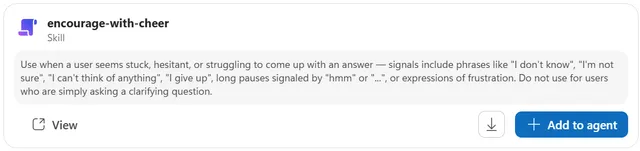
- Build reusable “skills” that a team can share
- Enrich content with AI-generated metadata (filled in over time)
- Build deterministic workflows that run on column changes or schedules
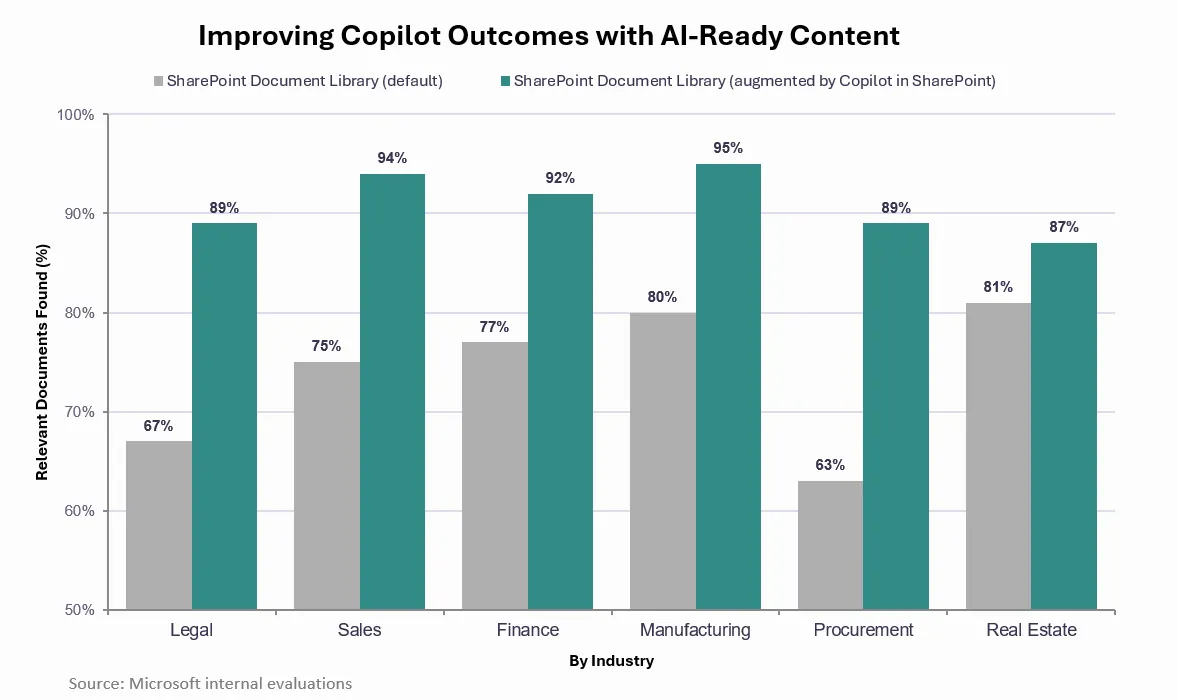
SharePoint is positioned as “a place that shapes content so AI can read it”. In Microsoft’s own evaluation, when the source content had been organized and structured by Copilot, the accuracy of answers in the Copilot app rose by an average of 17 points.
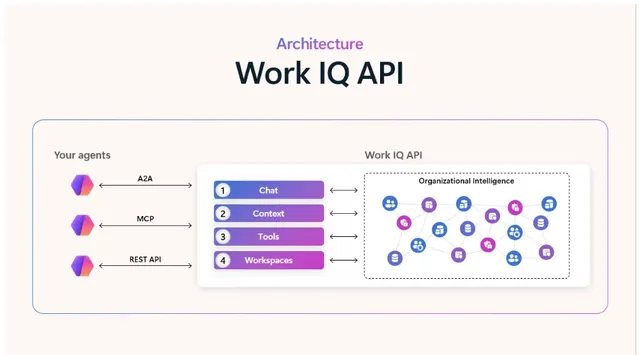
Another change is the reach beyond SharePoint. The tools behind Copilot in SharePoint are also built into the new Copilot app, Copilot Studio and Work IQ. Copilot and agents will be able to use SharePoint content and operations. Details of the Work IQ integration for developers are due in October.
For the overall picture of the new Copilot app, see also Making sense of the new Copilot: Home, Code and Autopilot.
Where the line falls between the license and Copilot Credits
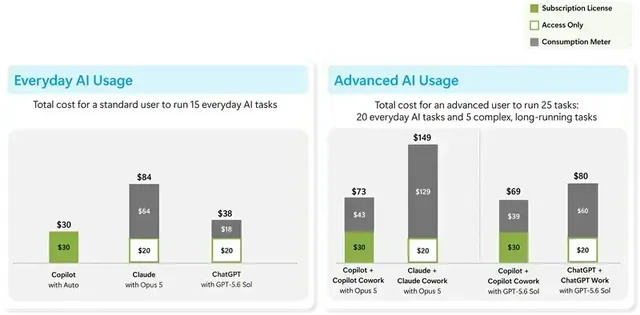
Billing splits in two, in line with Microsoft’s “hybrid billing model”. Everyday features are included in the license, and large-scale processing and new advanced features consume Copilot Credits.
The official blog describes what Copilot Credits cover as follows.
- Processing that runs across large volumes of content, and agent work that moves through multiple steps on its own
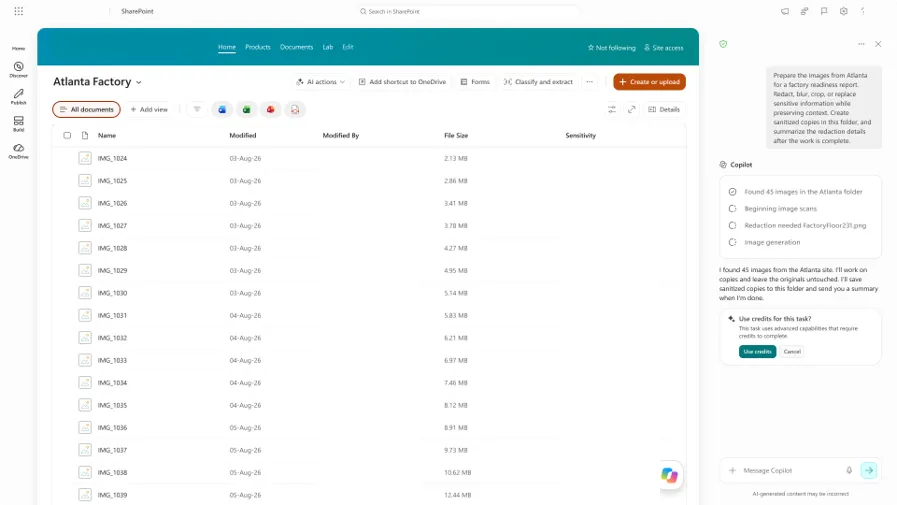
- Generating and editing images in document libraries and sites
- AI-generated analysis reports for sites
- Metadata auto-fill that runs in near real time
Using Copilot Credits requires enabling usage-based billing (UBB). Even once enabled, users are asked to confirm before Credits are used. The official blog includes a screenshot of that confirmation.
What admins decide
From here on, the content is what I checked in Microsoft Learn’s official documentation.
Making Copilot Credits available
Everyday features work with the Microsoft 365 Copilot license alone and need no enabling step. To use features that consume Credits (large-scale processing, real-time auto-fill, image generation and editing, site analysis and so on), you need the following setup.
- In the Microsoft 365 admin center, open Copilot > Cost management
- Choose Add spending policy and give it a name
- Under Access scope, choose everyone or specific security groups
- Under Agents and services, choose Advanced work in SharePoint
- Set the cap, notifications and billing method, then add the policy
When you apply real-time auto-fill to a whole site, usage-based billing must also be enabled on the target SharePoint site. An admin handling Credits for the first time creates a new policy. If “Allow new agents and services as they become available” is on in an existing policy, new services are added automatically. For existing policies, review this setting.
Who to assign Credits to
Learn says you don’t need to enable it for everyone. The priority targets it names are people who organize and process large volumes of content (knowledge managers, records managers, legal staff, compliance staff and so on) and people who create or update sites at scale (SharePoint admins, intranet admins and so on). It says to assign to content authors as needed, and that other users often don’t need it because everyday features are included in the license.
Behavior users see
- Before starting work that uses Credits, Copilot asks whether it is OK to use them
- Typing
/costshows the Credits used for that work and the remaining monthly cap - A notification appears when 20% of the monthly cap remains. When the cap is reached, usage-based features stop until the next month. From the notification, a user can request additional Credits
- If a user without Credits asks for an advanced feature, Copilot explains what it can’t do. When a user without Credits has work that exceeds the guideline for working at scale (the working-at-scale threshold), Copilot goes as far as it can, then tells the user to start a new chat
The weekly usage limit that applied during preview is lifted at general availability. However, a daily protective limit to keep use fair may apply.
Per-site control, and the end of the PowerShell settings
The PowerShell settings used during preview to turn the tenant or sites on and off (KnowledgeAgentScope, KnowledgeAgentSelectedSitesList, KnowledgeAgentSelectedSitesListOperation) are being retired. Existing settings remain valid until November 1, 2026, and can’t be used after that. From November on, control is through these two mechanisms.
- Site AI settings: the site owner works in the site’s Settings > Site AI. You can choose the agent that opens from the agent icon in the global header, hide the Copilot button for visitors, and enable advanced document processing for the site
- Restricted Content Discovery: when enabled on a site, neither Copilot in SharePoint nor AI actions appear on that site. This setting takes priority regardless of other availability settings
An organization that excluded particular sites with PowerShell during preview needs to enable Restricted Content Discovery on those sites by November 1. All Site AI settings can do is hide the Copilot button for visitors, and it isn’t a feature for removing Copilot and AI actions from a site.
Supported languages and models
Supported languages are limited to those listed in both SharePoint Online’s supported languages and Microsoft Copilot’s supported languages. Languages not on the list haven’t been tested or validated. An organization using it in Japanese should check both lists before deploying. The models are OpenAI reasoning models that Microsoft chooses and manages, and admins don’t configure them. The types may change in the future.
Petri’s article also notes this point: it widens how you can use it flexibly, but organizations that run advanced agentic workflows and bulk processing will incur extra cost.
Where it helps in practice
The official blog includes examples from preview and Microsoft’s evaluation results. Here I sort them by line of work where reading documents and making judgments takes up a lot of the job. All figures are Microsoft’s own, and you won’t necessarily get the same results at your company.
The chart below is Microsoft’s internal evaluation from the official blog. By industry, it compares the share of relevant documents found in the default document library (gray) with a library organized by Copilot in SharePoint (green). Most of the figures introduced below come from this chart.
Checking and inventorying contracts
This is the area with the most examples.
- Microsoft’s legal department uses Copilot in SharePoint for the first step of contract review. A step that took 72 hours when sent to an outside law firm now takes about 10 minutes with automated analysis, followed by validation and audit by a qualified person that takes up to an hour
- In the evaluation, the accuracy of finding the non-disclosure agreements (NDAs) that met the conditions rose from 67% to 89%
- Contracts with resellers can now be found in seconds, with accuracy up from 75% to 94%. It is presented as an example of widening the pool of sales opportunities
- Tourism and Events Queensland standardized how it drafts contracts, and turned contract information into data that feeds follow-on processes such as reporting and approvals
Analyzing technical documents
MAIRE Tecnimont uses specialized skills to analyze drawings and specifications, turning unstructured content into structured results in minutes instead of hours.
Finance and manufacturing checks
In the evaluation, the accuracy of finance checks applying industry-specific rounding rules rose from 77% to 92%, and the accuracy of manufacturing checks that verify certificates and apply version-control rules rose from 80% to 95%. For manufacturing, the example notes that the evidence you can show in an audit becomes stronger.
Preparing earnings materials
Microsoft’s investor relations team builds a sourced data pack for quarterly earnings preparation in about 12 hours instead of about 12 weeks. The traceable record needed for audit is kept.
The overall picture of the effect
In 10 co-development scenarios, the official blog says document workflow time fell by 95.7%, an average of 67.7 hours, compared with the previous way of working.
What to review before deploying
What follows is my own sorting, including inferences from the official information.
- Permissions: the official blog explains that Copilot Search answers from content the user has permission to access. Turned around, if some location has overly broad permissions, its content may show up in answers. Petri’s article also notes that alongside rolling out Copilot, the challenge is “scattered, unorganized content”. Before widening Copilot, check sites and libraries with broad sharing scope
- Metadata and organizing policy: even if Copilot fills in metadata, the business side needs to decide which columns to have. For contracts, deciding in advance which dimensions you will want to filter on later, such as contract type, counterparty and deadline, makes the AI’s auto-fill more useful too
- Usage-based billing policy: large-scale processing and advanced features consume Copilot Credits. As in the section above, Learn’s assumption is to limit it to people who handle large volumes of content or sites. Decide in advance, as a spending policy, who is allowed and how to set caps. I also touch on handling Copilot Credits in the article on Home, Code and Autopilot mentioned earlier
- Verifying AI output: even in Microsoft’s legal department example, validation and audit by a qualified person follow the AI’s analysis. Microsoft itself notes that answers can be wrong. Design on the premise that a human check remains before important decisions
What’s next
These are the next moves the official blog describes.
- Copilot in OneDrive also becomes generally available on September 30. It was rebuilt on the same foundation as Copilot in SharePoint, and licensing is handled the same way
- Copilot Search comes to SharePoint and OneDrive. It is planned to become the default search experience for users with a Copilot license, and rolls out in Frontier Public
- SharePoint features will spread to the Copilot app (Chat, Cowork, Code, Autopilot) and Copilot Studio over the coming months
- A feature to display UI components built with the SharePoint Framework inside Copilot chat is in public preview
Changelog
- Checked Microsoft Learn's official documentation for the admin setup steps, who to assign credits to, behavior visible to users, per-site control, the end of the PowerShell settings (November 1, 2026) and supported languages, and added the section on what admins decide
Spotted an error or something out of date? Let me know on X.
Related notes
Microsoft 365
Work IQ roadmap: approvals, agent policy, live transcripts
Timing for Work IQ's Human in the loop, Agent Policy Governance and Real Time Transcripts, compared with today's tenant-wide policy, Copilot Studio approvals and Teams APIs.
7 min
Microsoft 365
What is the Copilot Studio skill catalog? What to settle before managing skill sharing
The Copilot Studio skill catalog on the Microsoft 365 roadmap: what is known, how skills are built today, and what to settle before sharing skills across an organization.
6 min
Microsoft 365
Microsoft 365 Copilot: what's flat-rate, what's metered?
Microsoft's new Copilot billing model by case: what the monthly license covers, what uses Copilot Credits, and what is metered without a license, plus a pre-deployment inventory.
8 min